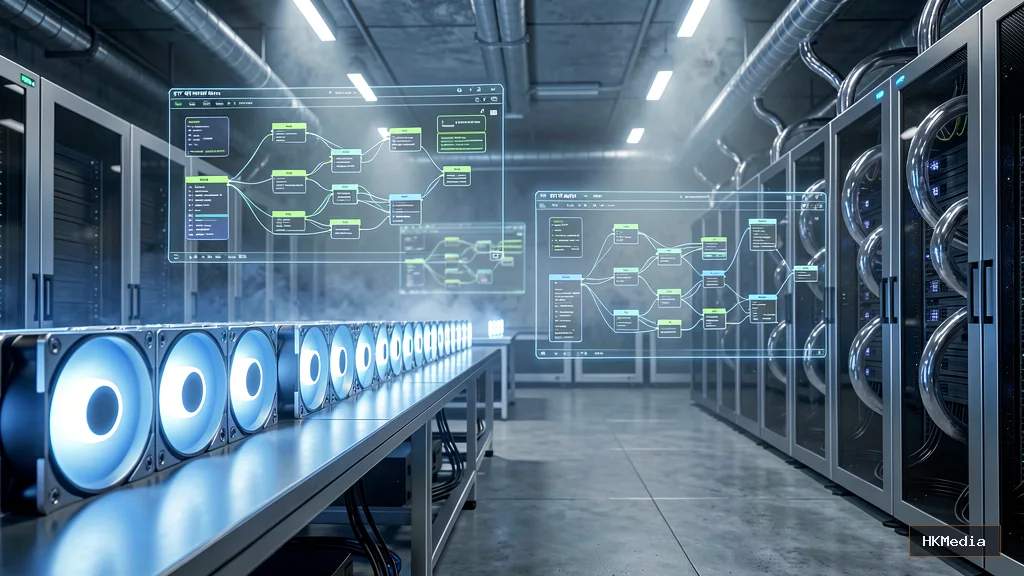
The era of renting inference by the API call is not necessarily ending, but the economics of local AI image generation are becoming increasingly attractive. For creators, developers, studios, and teams that need predictable operating costs, private workflows, rapid experimentation, and control over their models, a self-hosted AI image factory can be a powerful alternative to relying entirely on cloud inference.
A local AI image factory is more than a graphical interface running on a GPU. It is a complete production pipeline that combines hardware, drivers, model storage, workflow orchestration, quality control, security, automation, and monitoring. When these components are configured correctly, you can generate images, process batches, reuse proven workflows, and build custom applications without sending prompts or source images to an external inference provider.
This comprehensive guide explains how to build a reproducible ComfyUI environment on Linux, from selecting hardware and configuring NVIDIA drivers to managing checkpoints, optimizing VRAM, automating workflows, and preparing a system for continuous production. The examples focus on Ubuntu and Debian systems with NVIDIA GPUs, but many of the principles also apply to other Linux distributions and compatible accelerators.
Who is this guide for? Independent creators, AI artists, software developers, automation engineers, research teams, and small studios that want to operate their own image-generation infrastructure.
1. Why Build a Local AI Image Factory?
Hosted AI image-generation services are convenient because they eliminate hardware maintenance and simplify initial setup. However, API-based generation may introduce per-image costs, rate limits, external data processing, network dependencies, and restrictions on customization. A local deployment changes the operating model: instead of purchasing every inference request separately, you invest in infrastructure and operate it yourself.
The advantages depend on your workload, hardware, electricity prices, and operational expertise. Local generation is not automatically cheaper or faster for every user, but it offers several important benefits.
- Predictable marginal costs: Once the hardware is purchased, generating additional images does not normally require another inference API payment. Electricity, cooling, hardware depreciation, maintenance, and storage still contribute to the total cost.
- Greater data control: Prompts, uploaded reference images, generated outputs, and workflow files can remain on infrastructure you manage.
- Unlimited experimentation within capacity: You can repeatedly adjust prompts, seeds, samplers, LoRAs, resolutions, and workflow parameters without a provider's per-request billing model.
- Customizable pipelines: ComfyUI workflows can combine text-to-image, image-to-image, upscaling, inpainting, segmentation, and other supported operations.
- Offline operation: Once dependencies and models are installed, a properly configured environment can perform inference without an ongoing internet connection.
- Application integration: Local APIs can connect image generation to websites, internal tools, batch processors, and content-management systems.
- Model choice: You can evaluate compatible checkpoints, LoRAs, VAEs, and other components subject to their individual licenses.
There are trade-offs. You become responsible for security updates, driver compatibility, backups, model provenance, hardware failures, capacity planning, and service availability. A local system also cannot guarantee zero latency: model loading, sampling, image resolution, GPU memory pressure, and workflow complexity all affect response time.
2. Understand the Architecture Before Installing
A reliable deployment separates the components responsible for computing, workflow execution, storage, and user access. This makes the system easier to upgrade and troubleshoot than a collection of manually installed packages and undocumented configuration changes.
A practical architecture consists of six layers:
- Hardware: GPU, CPU, system RAM, NVMe storage, motherboard, power supply, and cooling.
- Operating system: Linux, system packages, kernel, and supported NVIDIA driver.
- Execution environment: A Python virtual environment or a container with compatible machine-learning dependencies.
- Inference engine: ComfyUI and the custom nodes required by your workflows.
- Model and workflow storage: Checkpoints, LoRAs, VAEs, embeddings, workflow JSON files, configuration, and generated outputs.
- Access and automation: A browser interface, API clients, job queues, monitoring, authentication, and backup processes.
Keep these layers conceptually separate. For example, a GPU driver update should not require rebuilding your entire model library, and a workflow revision should not overwrite the only copy of a working production workflow.
3. Hardware Foundation: GPU Selection and System Preparation
For image generation, GPU memory capacity is often as important as raw compute performance. A powerful GPU with insufficient VRAM may require CPU offloading, reduced resolution, quantized weights, or other compromises. Conversely, a card with more memory may accommodate larger models or more demanding workflows even when its raw processing speed is lower.
The following tiers are planning guidelines rather than strict compatibility guarantees. Actual requirements vary with the model architecture, weight precision, attention implementation, batch size, resolution, and workflow graph.
- Entry-level experimentation — 8–12 GB VRAM: Suitable for many Stable Diffusion 1.5 workflows and selected optimized or quantized larger models. High-resolution generation and complex pipelines may require offloading or smaller workloads.
- Comfortable creator workstation — 16 GB VRAM: A more flexible starting point for SDXL and a broader selection of modern image models, depending on configuration and available optimizations.
- Production-oriented workstation — 24 GB VRAM: A strong general-purpose tier for SDXL, many Flux configurations, larger batches, and multi-stage workflows. Some models and workflows will still exceed this capacity.
- High-memory workstation or server — 48 GB VRAM and above: Useful for larger model variants, demanding image-processing graphs, concurrent workloads, and experimentation with memory-intensive models.
- Multi-GPU systems: Valuable for independent parallel jobs or workloads explicitly designed to distribute computation. Two GPUs do not automatically combine their VRAM into one larger memory pool.
A balanced workstation should also include a modern CPU, sufficient system memory, fast storage, and cooling that can sustain long inference sessions. For general planning, 32 GB of system RAM is a reasonable starting point, while 64 GB or more provides additional headroom for model offloading, concurrent applications, preprocessing, and large model libraries.
Storage requirements depend on how many model families you keep installed. A 1 TB NVMe drive can support a smaller installation, but 2 TB or more is often a practical target for a growing collection of checkpoints, LoRAs, cached files, workflows, and generated images.
Check Your Hardware Before Buying or Configuring Software
On an existing Linux machine, collect the following information before changing drivers or installing a machine-learning stack.
# Operating system and kernel
cat /etc/os-release
uname -r

# CPU and system memory
lscpu
free -h

# Available disk space
df -h

# NVIDIA GPU and driver information, if available
nvidia-smi

# PCI devices, including graphics hardware
lspci | grep -Ei 'VGA|3D|Display|NVIDIA|AMD'
The nvidia-smi command requires a working NVIDIA driver. If it is unavailable, that does not necessarily mean the GPU is defective; the driver may be missing, incompatible with the running kernel, or unable to initialize.
BIOS, Power, and Cooling Considerations
Before deploying a production workload, check that the power supply is rated for the complete system, the GPU receives the required power connectors, and airflow remains adequate during sustained use. Review motherboard compatibility and physical clearance when installing large cards.
Above 4G Decoding and Resizable BAR may be useful for compatible hardware configurations, but they are not universal prerequisites for ComfyUI. Enable firmware features according to your motherboard and GPU documentation rather than changing unrelated BIOS settings indiscriminately.
4. Operating System and NVIDIA Driver Stack
Choose a supported Linux distribution and keep the installation as reproducible as possible. Ubuntu 22.04 LTS, Ubuntu 24.04 LTS, and Debian 12 or newer supported releases may be suitable depending on their current maintenance status, the GPU generation, and the software stack you intend to use.
The NVIDIA driver, CUDA runtime libraries, PyTorch build, and optional CUDA compiler toolkit are related but distinct components. Installing the latest version of every component independently can create incompatibilities. A safer approach is to select a supported driver first, then use a PyTorch installation that matches the CUDA runtime requirements of the chosen ComfyUI environment.
Important: Do not assume that a particular driver number, such as 550, is appropriate for every GPU and operating-system release. Check the current compatibility information for your exact environment before installing or pinning a version.
Step 1: Update the System
sudo apt update
sudo apt upgrade

sudo apt install -y \
  git \
  curl \
  wget \
  ca-certificates \
  python3 \
  python3-venv \
  python3-pip \
  python3-dev \
  build-essential \
  pkg-config
Review major package upgrades before accepting them on a production server. If a kernel upgrade is installed, make sure the corresponding NVIDIA kernel module is available before scheduling important generation jobs.
Step 2: Install a Compatible NVIDIA Driver
On Ubuntu, inspect the driver recommendations provided for your hardware before installation.
# Show available driver recommendations on Ubuntu
ubuntu-drivers devices

# Install the distribution-recommended driver
sudo ubuntu-drivers install

# Restart if requested by the installer
sudo reboot
This example uses Ubuntu's driver management tooling. On Debian or another distribution, follow the distribution's official NVIDIA installation instructions instead. Avoid mixing distribution packages, NVIDIA runfile installations, and third-party driver repositories unless you understand how they interact.
After restarting, verify the driver and GPU status.
nvidia-smi
A successful result should identify the GPU, display a driver version, and report memory usage. The CUDA version shown by nvidia-smi represents the CUDA compatibility level advertised by the driver; it does not prove that the CUDA compiler toolkit is installed.
Step 3: Install CUDA Components Only When Needed
For many ComfyUI installations, a compatible PyTorch package supplies the CUDA runtime libraries needed for inference. A separate system-wide CUDA toolkit is usually unnecessary unless you need to compile CUDA extensions or build software that specifically requires the toolkit.
If your workload requires the compiler toolkit, consult NVIDIA's official CUDA installation documentation for the exact distribution, driver, and toolkit combination:
NVIDIA CUDA Installation Guide for Linux
Avoid blindly installing a toolkit version based on an old tutorial. A newer toolkit is not automatically required for a newer GPU, and the presence of nvcc is not necessary for every inference workload.
5. Choose an Installation Strategy: Python or Docker
There are two practical deployment approaches. A Python virtual environment is straightforward for a single workstation, while containers provide stronger dependency separation and can simplify repeatable deployments across compatible servers.
Option A: Native Python Virtual Environment
A virtual environment isolates Python packages from the system installation. It does not isolate the GPU driver, operating-system libraries, or every possible native dependency, but it substantially reduces conflicts between Python projects.
mkdir -p "$HOME/ai-factory"
cd "$HOME/ai-factory"

git clone https://github.com/comfyanonymous/ComfyUI.git
cd ComfyUI

python3 -m venv .venv
source .venv/bin/activate

python -m pip install --upgrade pip setuptools wheel

# Install a PyTorch build compatible with your GPU and driver.
# Select the appropriate command from the official PyTorch installer:
# https://pytorch.org/get-started/locally/

# Install ComfyUI's declared Python dependencies.
python -m pip install -r requirements.txt
The PyTorch installation command is intentionally not hard-coded because compatible builds depend on the GPU architecture, operating system, Python version, and available CUDA runtime. Install the correct PyTorch build before installing the remaining dependencies, and consult ComfyUI's current installation instructions if its requirements specify a different procedure.
Keep a record of the repository revision and package versions after confirming that the environment works. For a production system, avoid updating dependencies in the middle of a scheduled batch without first testing the change in a separate environment.
Option B: Containerized Deployment
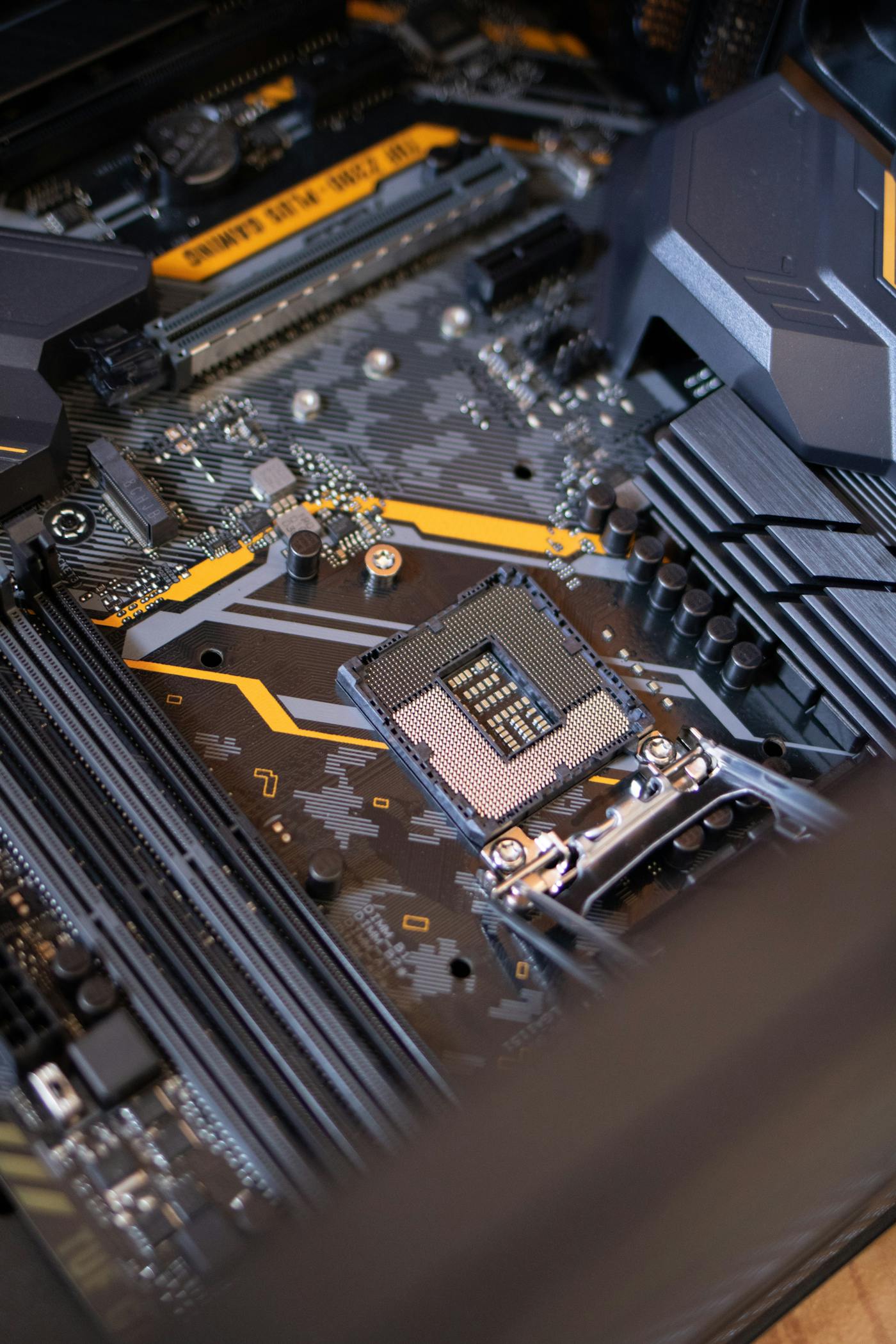
Containers can make deployment and rollback easier, but they do not eliminate GPU compatibility requirements. The host still needs a functioning NVIDIA driver, and the container runtime must be configured to expose the GPU.
Install Docker Engine by following the official instructions for your distribution:
Docker Engine installation documentation
Then install the NVIDIA Container Toolkit according to NVIDIA's current instructions:
NVIDIA Container Toolkit installation guide
Test GPU access before deploying the application. Use an official NVIDIA CUDA container image compatible with your host driver and verify the result using nvidia-smi. Follow the image's documented startup procedure rather than assuming every image uses the same command.
For ComfyUI, select a maintained image or build one from a version-controlled Dockerfile. Mount model storage and output storage deliberately, use a fixed image tag or digest, and document the configuration used to build the image.
Do not expose the Docker daemon to the public internet. Access to the Docker socket is highly privileged and can effectively grant control over the host.
6. Configure ComfyUI for Reproducible Workflows
ComfyUI uses a node-based graph to describe how a generation task is executed. Rather than treating an image-generation request as a single opaque prompt, a workflow explicitly defines model loading, text conditioning, sampling, latent decoding, and output saving. Additional nodes can implement preprocessing, masks, ControlNet, LoRA loading, and other supported operations.

Start with a minimal workflow that uses a compatible checkpoint, positive and negative conditioning where applicable, a sampler, a latent image, a decoder, and an output-saving node. Confirm that this baseline works before adding custom nodes or complex multi-stage processing.
Launch ComfyUI from its repository directory and virtual environment:
cd "$HOME/ai-factory/ComfyUI"
source .venv/bin/activate

# Start locally for initial testing
python main.py --listen 127.0.0.1 --port 8188
Open http://127.0.0.1:8188 from a browser on the same machine. Binding to the loopback interface is appropriate for initial testing because it avoids making the interface directly accessible to other machines.
If you need remote access, use a properly secured private network or authenticated reverse proxy. Do not assume that the default ComfyUI interface provides authentication simply because it runs on a Linux server.
7. Model Curation: Checkpoints, LoRAs, VAEs, and Licenses
A growing model collection can quickly become a storage and maintenance problem. Downloading every promising checkpoint creates duplicates, increases backup costs, and makes it harder to determine which model produced a particular result.
Instead, maintain a curated library with documented model versions and known-good workflow configurations.
- Checkpoints: Main model weights used by the workflow. Confirm the model architecture before connecting it to a graph.
- LoRAs: Smaller adapter weights that modify a compatible base model's behavior or style. Confirm the expected architecture and recommended strength range.
- VAEs: Components used to encode or decode latent representations when required by the model architecture.
- Text encoders: Model-specific components used to turn prompts into conditioning representations.
- Control models: Components used for supported conditioning techniques such as pose, depth, edges, or other structural guidance.
- Upscalers: Models that increase image dimensions or improve perceived detail during a separate processing stage.
Typical ComfyUI installations organize model files under models/, with subdirectories such as checkpoints/, loras/, vae/, controlnet/, and upscale_models/. Exact locations can differ by model type, configuration, custom nodes, and version.
Create a Clear Model Directory Structure
cd "$HOME/ai-factory/ComfyUI"

mkdir -p models/checkpoints
mkdir -p models/loras
mkdir -p models/vae
mkdir -p models/controlnet
mkdir -p models/upscale_models

mkdir -p user/default/workflows
mkdir -p output
Before downloading a model, verify its source, architecture, file size, checksum when available, and license. Some model licenses restrict commercial usage, redistribution, particular applications, or use under specific conditions. A model being publicly downloadable does not automatically mean it can be used for every commercial purpose.
Keep a manifest for important models. Record the source page, filename, version, checksum, license, intended use, and date verified. This is especially important when a production workflow depends on a particular model revision.
# Example: calculate a checksum after downloading a model
sha256sum models/checkpoints/your-model.safetensors
Use the real filename in place of your-model.safetensors. Store the resulting checksum in your model manifest so that you can verify the file after moving or restoring it.
Prefer reputable model repositories and inspect the metadata provided by the publisher. Treat unknown model files and custom nodes as untrusted software assets until their provenance has been reviewed.
8. VRAM Optimization: Get More from Your GPU

GPU memory consumption depends on model weights, intermediate activations, attention operations, latent dimensions, batch size, and additional nodes. There is no single VRAM setting that guarantees every model will run efficiently.
When a workflow exceeds available memory, the most effective solution is often to simplify the workload before changing several low-level settings.
- Reduce batch size: Generate fewer images concurrently. This often lowers peak memory usage while preserving individual image quality.
- Start with a smaller resolution: Test the workflow at a moderate size before moving to larger images. High-resolution stages can increase memory demand substantially.
- Use appropriate model precision: FP16, BF16, and supported quantized weights can reduce memory requirements, but compatibility and output behavior vary.
- Enable supported offloading: Move selected model components between GPU and system memory when necessary. This can make larger models usable but may reduce throughput.
- Separate generation from upscaling: Generate a stable base image first, then perform enlargement as a distinct stage.
- Control concurrent jobs: Multiple workflows can compete for the same VRAM. Queue work rather than launching unlimited simultaneous requests.
- Inspect custom nodes: A memory-heavy node, duplicate model load, or unnecessarily retained intermediate tensor can cause failures even when the base model normally fits.
Measure Memory Use Instead of Guessing
# Watch GPU memory and utilization in real time
nvidia-smi -l 1
Record the peak memory usage for representative workflows. Test the smallest expected workload, the most demanding production workflow, and a realistic sequence of queued jobs. These measurements are more useful than relying on the VRAM figures quoted for a model alone.
If you encounter out-of-memory errors, change one variable at a time. Reduce batch size, simplify the graph, lower resolution, or use a supported offloading strategy. Avoid copying undocumented command-line flags from unrelated model versions because available options can change between ComfyUI releases.
9. Build Repeatable Image-Generation Workflows
A production workflow should be designed for repeatability, inspection, and recovery. A graph that produces one impressive image is not necessarily a reliable production pipeline.
For each workflow, document the expected input, output, model dependencies, required custom nodes, important parameters, and failure conditions. Save the workflow JSON alongside example outputs and the version information needed to reproduce it.
A practical workflow might contain the following stages:
- Input validation: Check the prompt, requested dimensions, seed, output format, and any uploaded source image.
- Model loading: Load the compatible checkpoint and required supporting components.
- Conditioning: Encode the positive and negative prompts where supported by the model architecture.
- Sampling: Execute the selected sampler, scheduler, step count, guidance settings, and seed.
- Decoding: Convert the latent representation into an image using the appropriate decoder.
- Post-processing: Apply optional face correction, inpainting, resizing, or upscaling only when required.
- Output validation: Confirm that the result exists, has the expected dimensions, and can be opened.
- Metadata recording: Associate the result with its prompt, seed, model version, workflow revision, and job identifier.
Keep a small collection of representative test prompts and fixed seeds. After updating ComfyUI, PyTorch, a model, or a custom node, run these tests to identify regressions before returning the updated environment to production.
10. Automate ComfyUI with Its HTTP API
ComfyUI can be integrated into custom applications using its HTTP API and WebSocket event stream. A client can submit a workflow, track execution events, retrieve generated images, and associate outputs with an external job record.
This enables applications such as private creative dashboards, internal content tools, batch-generation services, and automated image-processing systems. However, the API should be treated as a privileged interface to your inference environment rather than as an unrestricted public endpoint.
The following example submits an existing API-format workflow and saves the returned queue identifier. It assumes ComfyUI is running locally and that workflow_api.json contains a valid API-format workflow with the required model references and node inputs.
import json
import urllib.request
import urllib.error

COMFYUI_URL = "http://127.0.0.1:8188"
WORKFLOW_FILE = "workflow_api.json"


def submit_workflow(workflow_file):
    with open(workflow_file, "r", encoding="utf-8") as file:
        workflow = json.load(file)

    payload = json.dumps({
        "prompt": workflow
    }).encode("utf-8")

    request = urllib.request.Request(
        f"{COMFYUI_URL}/prompt",
        data=payload,
        headers={"Content-Type": "application/json"},
        method="POST",
    )

    try:
        with urllib.request.urlopen(request, timeout=30) as response:
            result = json.load(response)
    except urllib.error.HTTPError as error:
        details = error.read().decode("utf-8", errors="replace")
        raise RuntimeError(
            f"ComfyUI rejected the workflow: HTTP {error.code}: {details}"
        ) from error
    except urllib.error.URLError as error:
        raise RuntimeError(
            f"Could not reach ComfyUI: {error.reason}"
        ) from error

    prompt_id = result.get("prompt_id")
    if not prompt_id:
        raise RuntimeError(f"No prompt_id returned: {result}")

    print(f"Workflow queued successfully: {prompt_id}")
    return prompt_id


if __name__ == "__main__":
    submit_workflow(WORKFLOW_FILE)
The API-format workflow is not always identical to the workflow JSON you save for editing in the browser. Export the appropriate API representation from your installed ComfyUI version and test it before automating large batches.
Submitting a job does not mean generation has finished. A complete client should monitor the WebSocket or query the appropriate history endpoint, handle errors and interruptions, and verify that the expected output files exist. Consult the current project documentation for the exact endpoints and response formats used by your installed version.
ComfyUI source repository and documentation
Production Queue Design
For more than a few manual requests, place a job queue between your application and the inference engine. A queue makes it possible to enforce concurrency limits, retry recoverable failures, prioritize work, and prevent multiple clients from exhausting the same GPU simultaneously.
Each job should have a unique identifier, an explicit status, a creation timestamp, and a defined failure state. Avoid retrying invalid workflows indefinitely: validate user inputs and workflow references before placing a job in the queue.
11. Build a Secure Service Instead of Exposing the Interface

A locally hosted application is not automatically secure. ComfyUI, custom nodes, file upload handlers, and supporting scripts may expose powerful operations. A careless network configuration can turn a private workstation into an externally accessible service.
Apply the following baseline controls before allowing remote or multi-user access:
- Bind to a private interface: Keep the service on loopback or a trusted internal interface unless remote access is explicitly required.
- Use authenticated access: Put remote access behind an appropriately configured VPN or reverse proxy with authentication and HTTPS.
- Restrict inbound traffic: Allow only the ports and source networks required for administration and approved clients.
- Review custom nodes: Third-party extensions may execute code with the privileges of the ComfyUI process. Install only reviewed dependencies from trusted sources.
- Validate uploads: Apply file-size limits, supported-format checks, safe storage paths, and appropriate processing timeouts.
- Separate permissions: Run the application as a dedicated unprivileged user rather than as root.
- Protect secrets: Do not store passwords, access tokens, or API credentials in public workflow files or source repositories.
- Patch regularly: Test and apply relevant security fixes to the operating system, Python dependencies, container images, and custom nodes.
- Keep audit records: Record job identifiers, timestamps, outcomes, and relevant administrative actions without unnecessarily logging sensitive prompts or private source images.
If you use a reverse proxy, ensure it forwards requests correctly, enforces access controls, and supports the connection behavior required by your chosen client. Do not assume that hiding the interface URL is an effective authentication mechanism.
For sensitive creative work, also define a retention policy. Decide how long uploaded references, prompts, generated files, temporary files, and job metadata should remain on disk. A private network alone does not protect data from compromised accounts, malicious extensions, or misconfigured backups.
12. Monitoring: Measure Performance and Reliability

A GPU utilization percentage alone cannot tell you whether an image-generation service is healthy. A reliable monitoring strategy combines hardware telemetry, queue statistics, application logs, storage capacity, and end-to-end job measurements.
- GPU utilization: Identify whether the GPU is actively processing work or waiting for another component.
- VRAM usage: Track memory consumption and investigate sudden increases or repeated allocation failures.
- GPU temperature and power: Look for thermal throttling, abnormal power behavior, or inadequate cooling.
- System RAM and swap: Detect excessive CPU offloading, memory pressure, and possible system instability.
- Storage: Track free space, model-library growth, and output-directory capacity.
- Queue depth: Measure how many jobs are waiting and how long they remain queued.
- Generation duration: Record time to first progress event, total execution time, and post-processing duration.
- Error rate: Track failed jobs, invalid workflows, timeouts, and retries.
Inspect GPU Health
# Interactive GPU status refresh
nvidia-smi -l 2

# One-time detailed GPU report
nvidia-smi -q

# Inspect system load and memory
uptime
free -h
df -h
Establish a baseline using the same workflow, model, resolution, sampler, step count, and hardware configuration. Compare median and high-percentile execution times over several runs rather than drawing conclusions from a single generation.
Remember that the first run may include model loading, compilation, cache initialization, or other one-time work. Separate cold-start measurements from steady-state generation measurements when evaluating performance.
13. Troubleshooting: Common Problems and Practical Fixes
Most deployment failures can be narrowed down by checking the hardware, driver, Python environment, model files, and workflow in that order. Change one component at a time so you can identify the actual cause instead of introducing several new variables.
Problem: nvidia-smi Cannot Communicate with the Driver
Possible causes include an unloaded kernel module, a driver and kernel mismatch, an incomplete installation, or a GPU that is not visible to the operating system.
uname -r
lsmod | grep nvidia
lspci | grep -Ei 'VGA|3D|NVIDIA'
journalctl -k -b | grep -Ei 'nvidia|nvrm|nouveau'
Review the relevant errors before reinstalling drivers. Secure Boot, DKMS build failures, unsupported hardware, and kernel updates can all affect driver loading.
Problem: PyTorch Does Not Detect CUDA
Confirm that you are running the intended virtual environment and that the installed PyTorch build supports your GPU and runtime configuration.
source "$HOME/ai-factory/ComfyUI/.venv/bin/activate"

python -c "import torch; print('PyTorch:', torch.__version__); print('CUDA build:', torch.version.cuda); print('CUDA available:', torch.cuda.is_available()); print('Devices:', torch.cuda.device_count())"
If CUDA is unavailable, inspect the installed package versions and driver status before changing anything. The system compiler toolkit is not necessarily the missing component; installing it blindly may not fix an incompatible PyTorch wheel.
Problem: Out-of-Memory Errors
- Reduce the batch size to one while troubleshooting.
- Lower the requested image resolution.
- Check whether another process is consuming GPU memory.
- Remove unnecessary nodes and duplicate model loads.
- Try a supported precision or offloading configuration.
- Separate high-resolution processing into a later stage.
Problem: Missing Models or Custom Nodes
Check the exact model path, filename, architecture, and expected component type. A model can be present on disk but still be incompatible with a particular workflow. After installing a custom node, review its documented dependencies and restart ComfyUI when required.
Do not install every extension that appears in an error message without checking its source and compatibility. Some workflows depend on specific node versions, and upgrading an extension can introduce changes to its inputs or behavior.
Problem: Generation Is Slower Than Expected
Measure the workflow before optimizing it. Check whether the GPU is fully utilized, whether the system is swapping memory, whether model offloading is active, and whether preprocessing or post-processing dominates total execution time.
Also verify that you are comparing equivalent workloads. Different model families, precision modes, resolutions, sampler settings, and step counts can produce radically different execution times. Avoid assuming that one benchmark represents every generation task.
Problem: The Disk Fills Up Unexpectedly
# Inspect filesystem capacity
df -h

# Identify large directories under your ComfyUI installation
du -h --max-depth=2 "$HOME/ai-factory/ComfyUI" 2>/dev/null | sort -h | tail -20
Identify which directories are growing before deleting anything. Model files, outputs, caches, container layers, and logs have different retention requirements. Do not automatically remove unknown files from active model or application directories.
14. Backup and Recovery: Protect the Work That Matters
A working installation is not a recoverable installation until you have tested restoring it. Back up the assets that would be difficult or expensive to reconstruct, and distinguish those assets from caches or other data that can safely be regenerated.
- Workflow files: Keep version-controlled copies of important graphs and API-format workflows.
- Configuration: Preserve startup settings, environment definitions, service files, and deployment manifests.
- Model manifest: Record filenames, checksums, source locations, and licenses.
- Custom nodes: Record repository URLs, versions, and dependency information.
- Important outputs: Back up selected deliverables and associated metadata.
- Credentials and secrets: Store them separately using an appropriate secret-management process.
For a large model library, full duplication may be expensive. You can keep verified model downloads in durable storage and restore them as required, provided the backup strategy also protects against accidental deletion, corruption, and loss of the original source.
Use a version-control system for workflows, configuration files, and deployment scripts. Avoid committing large model files or generated private images to a public repository. A private repository is also not a substitute for a separate backup.
15. Estimate the Real Cost of Local Generation
The correct comparison is not simply local hardware versus the price of one API request. It is the total cost of producing the volume and quality of images you actually need.
A useful local cost model includes:
- GPU, CPU, storage, and other hardware depreciation.
- Electricity consumed during generation and idle periods.
- Cooling, maintenance, repairs, and replacement parts.
- Time spent configuring, updating, and troubleshooting the system.
- Storage and backup costs for models and outputs.
- Any costs for networking, remote access, or additional infrastructure.
Measure energy consumption at the wall when possible, rather than estimating total system power from GPU specifications alone. The CPU, motherboard, storage, fans, and power-supply efficiency also affect electricity use.
You can estimate electricity cost with the following formula:
Electricity cost = average system power in kW × operating hours × electricity price per kWh.
For example, a system averaging 0.55 kW for 100 hours consumes approximately 55 kWh. At an illustrative electricity rate of $0.15 per kWh, that energy costs $8.25. This excludes hardware depreciation, idle power outside the measured period, cooling overhead not included in the measurement, and maintenance.
To compare against a hosted service, divide the full monthly local operating cost by the number of successfully delivered images. Also account for image quality, failed generations, throughput, and the time required to operate the infrastructure.
Local hosting tends to become more attractive when workloads are frequent, predictable, privacy-sensitive, or highly customized. Cloud services may remain preferable for occasional use, rapidly changing hardware needs, or workloads that would require an expensive dedicated GPU server.
16. Scaling from One GPU to a Production Cluster
A single well-configured GPU is often the best starting point. It provides a baseline for measuring throughput, identifying workflow bottlenecks, and estimating the value of additional hardware.
When demand grows, scale according to the actual constraint rather than buying hardware immediately.
- Queue optimization: Remove redundant model loads, limit concurrent jobs, and prioritize workloads according to service requirements.
- Independent GPU workers: Run separate inference workers on separate GPUs when workloads can execute independently.
- Shared model storage: Maintain a controlled model library or replicate verified models to worker-local NVMe storage.
- Central job management: Track queued, running, completed, and failed jobs in a central application or queue service.
- Worker health checks: Detect disconnected or unresponsive workers and prevent new jobs from being routed to unhealthy instances.
- Capacity planning: Measure sustained throughput, peak VRAM consumption, queue wait time, and failure rates before expanding.
Multiple GPUs do not automatically behave like one larger GPU. Some model-parallel configurations can distribute a model across devices, but they require explicit support and configuration. For many image-generation workloads, assigning independent jobs to separate workers is simpler and often more practical.
For multi-user services, define limits for job submissions, image dimensions, queue depth, storage consumption, and execution time. These limits protect the system from accidental overload and prevent one client from monopolizing the available GPU resources.
17. Production Readiness Checklist
Before using the system for important or continuous workloads, verify each of the following items.
- GPU detection and driver initialization succeed after a reboot.
- PyTorch detects the intended GPU and completes a test inference.
- The baseline workflow produces a valid image using the expected model.
- Model versions, licenses, checksums, and workflow dependencies are documented.
- Custom nodes and Python dependencies are recorded and reviewed.
- Generation jobs have identifiers and observable completion or failure states.
- Remote access is authenticated and restricted to trusted users or networks.
- Uploads, file paths, request sizes, and job concurrency are appropriately controlled.
- Logs, GPU health, disk usage, and queue performance can be inspected.
- Backups exist for important workflows, configuration, and outputs.
- A restore test has been completed successfully.
- Updates are tested before being applied to the production environment.
- Representative benchmark workflows are available for regression testing.
18. Recommended Documentation and Resources
AI tooling evolves rapidly, so use current primary documentation to verify installation commands, compatibility requirements, API behavior, and security recommendations. A guide should establish the architecture and process; the project's current documentation should determine the exact versions and commands used on your machine.
- ComfyUI: Source repository, installation information, and project documentation.
- PyTorch: Official installation selector for supported package combinations.
- NVIDIA CUDA: CUDA Toolkit documentation.
- NVIDIA Container Toolkit: GPU access for containerized applications.
- Docker: Official container installation and administration documentation.
- Ubuntu: Server administration documentation.
Conclusion: Build a System You Can Reproduce, Secure, and Improve
A reliable local AI image factory is not defined by the size of its model collection or the headline performance of its GPU. It is defined by how consistently it produces the results you need, how easily it recovers from failures, how securely it handles data, and how confidently you can update it without breaking established workflows.
Start with a compatible GPU, a supported Linux installation, a working driver, and one minimal ComfyUI workflow. Add a curated model library, record dependency versions, and establish a performance baseline. Only then introduce custom nodes, automation, queue management, remote access, and additional workers.
For individual creators, this approach delivers control over the creative process. For developers, it provides a programmable inference engine that can be integrated into existing applications. For studios and teams, it creates the foundation for private, repeatable, and measurable image-generation production.
The objective is not to eliminate every cloud dependency or promise unlimited performance. It is to build an environment in which your costs, data, models, and workflows are under your control—and in which every important component can be understood, tested, and maintained.
Comments (0)